Teaching in the digital era has introduced a new layer of decision making for educators. Beyond mastering the subject and designing lessons, teachers now need to think about devices, screens, writing tools and hybrid teaching setups.
While planning my own lecture delivery system for Business Studies classes, I found myself asking a series of practical questions. The goal was simple: build a setup that allows me to explain concepts clearly, write naturally during lectures, and simultaneously support both online and offline students.
What follows is a reflection on that exploration.
Suhas Pandey writes on the intersection of education, technology, and teaching practice. His work explores how simple digital tools can help educators deliver clearer, more engaging learning experiences in modern classrooms.
Table of Contents
The Problem With Non-Display Graphic Tablets
Like many teachers who shifted to digital teaching during the online education boom, I already owned a non-display graphic tablet. These devices require you to write on a tablet placed on the desk while looking at the computer screen to see the writing appear.
Technically the system works, but practically it feels unnatural. Your hand writes in one place while your eyes track the output somewhere else on the screen. For short annotations this is manageable, but during long lectures it becomes uncomfortable.
That led to the first question: would buying another graphic tablet improve the writing experience?
The answer turned out to be no. The difficulty was not the brand or sensitivity of the device. The challenge was the absence of a display surface where the writing actually appears.
Moving Toward a Pen Display Tablet
The natural alternative was exploring pen display tablets such as the Huion Kamvas Pro 13. A pen display tablet allows you to write directly on the screen using a stylus. The digital ink appears exactly where the pen touches the display, similar to writing on paper.
For teaching purposes this is a significant improvement. When explaining diagrams, drawing flowcharts or highlighting important points on slides, writing directly on the display restores the natural rhythm of teaching.
The experience becomes much closer to writing in a notebook or on a classroom board.
How Does This Compare to an Interactive Panel?
While considering the tablet option, another long-term question emerged. Many institutions are investing in interactive panels or smart boards for classrooms. These large displays allow teachers to write on a big screen visible to the entire class.
This raised an obvious comparison: how does writing on a pen display tablet compare with writing on an interactive panel?
The difference largely comes down to scale and context. Interactive panels mimic the experience of writing on a board with large arm movements and a bigger writing surface. They work well in physical classrooms.
Pen display tablets, on the other hand, offer more precision and smoother digital writing. They are particularly suited to teachers who use slides, conduct online classes, or create recorded lessons.
For educators working in hybrid environments, the tablet often integrates more easily with existing digital workflows.
The Concern About Camera Eye Contact
Another question that surfaced was related to student engagement during live classes.
When teachers write on a board in a physical classroom, they naturally look away from students while writing. However, online teaching introduces the additional presence of a camera.
If I write on a tablet, my eyes will move away from the camera. Does that weaken the teaching experience?
Observing experienced online educators reveals that students primarily focus on the content being explained. A natural rhythm emerges during teaching: explain a concept, write or draw while elaborating, and then look back toward the camera to summarize.
In practice, this pattern feels natural to students and mirrors the dynamic of traditional board teaching.
Designing a Hybrid Teaching Setup
The next challenge was designing a setup that could support both offline and online students simultaneously.
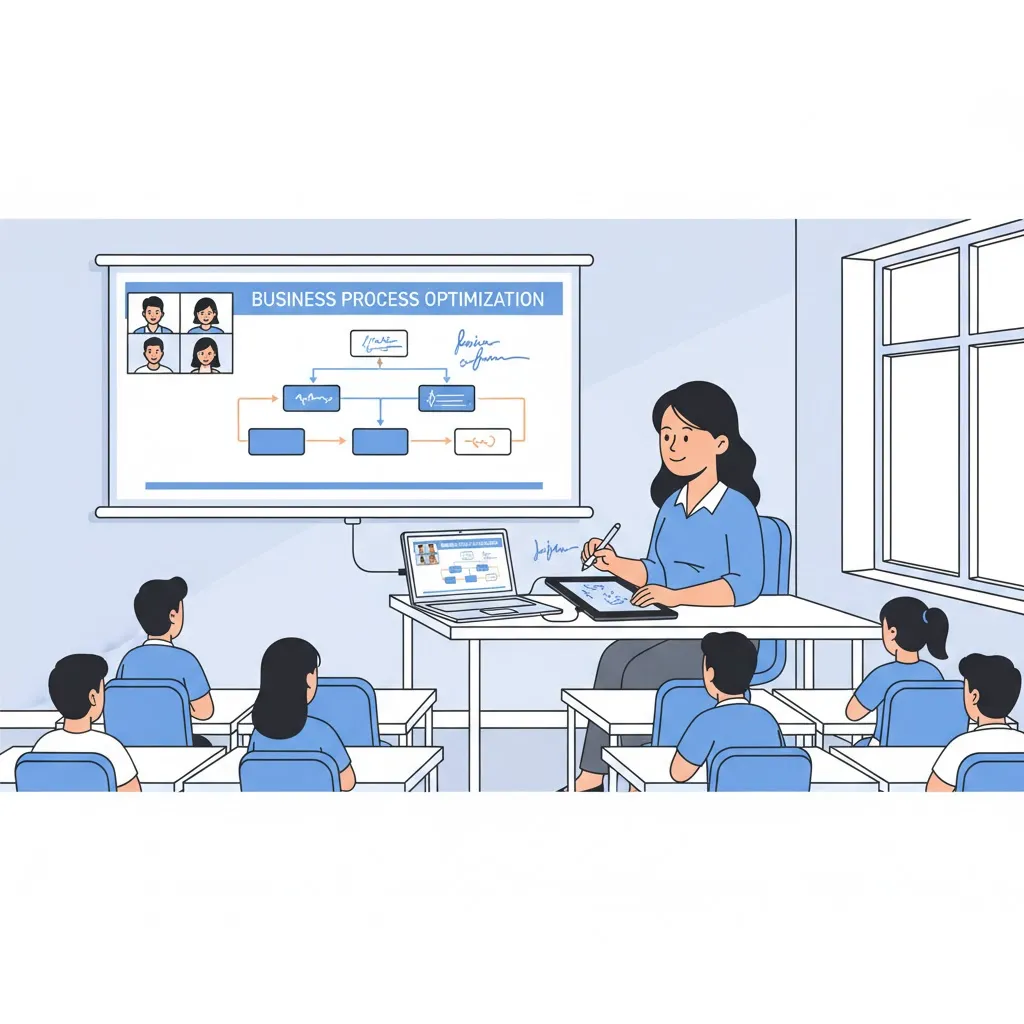
Imagine a scenario where a teacher is conducting a class in a physical classroom while the same session is being streamed online. The teacher writes on a tablet while explaining slides. Students in the room watch the projected screen, while online participants see the same screen through screen sharing.
Technically this requires connecting the laptop to both a projector and a pen display tablet at the same time.
The feasibility of this setup depends on the available display ports on the laptop. In many cases both the tablet and the projector require an HDMI connection for video output.
If the laptop has only one HDMI port, an HDMI splitter can mirror the same display signal to both the tablet and the projector. This ensures that the writing performed on the tablet appears simultaneously on the classroom projector and on the shared screen for online students.
Checking Laptop Compatibility
Laptop specifications therefore become an important part of the decision.
In my case the system being used is an HP 15s series laptop powered by an Intel Core i5 processor with 16 GB RAM. The device provides a single HDMI port along with multiple USB ports.
Since both the tablet and the projector require video output, the practical solution is to use an HDMI splitter that mirrors the display signal to both devices. This allows the teacher to write on the tablet while students in the classroom and online see the same content.
Understanding the “Tablet Tilt” Feature
While evaluating tablet specifications another technical term appeared frequently: tilt support.
Tilt recognition refers to the ability of the stylus to detect the angle at which the pen is held. Digital artists use this feature to create shading effects similar to tilting a pencil on paper.
For teaching purposes, however, tilt functionality is rarely critical. Most educational applications treat stylus input simply as digital writing rather than artistic shading.
A Small but Important Question About Power
Another practical detail emerged when examining the tablet package. The Kamvas Pro 13 does not include a wall charger in the box.
The tablet uses a three-in-one cable that connects to the laptop through HDMI and USB. The power line in this cable can draw power either from a laptop USB port or from a standard phone charger.
In many setups teachers simply connect the power cable to a regular phone charger rated at five volts and two amps. This provides stable power during long classes.
Improving Teaching With Slide Structure
Beyond hardware decisions, the exploration also led to a useful teaching insight.
When using digital writing tools, lectures become far more engaging if slides alternate between concept slides and blank explanation slides.
For instance, one slide introduces a concept or framework. The following slide remains blank, allowing the teacher to write and build the explanation step by step. The next slide may then present a case study or application.
This structure recreates the experience of board teaching while retaining the clarity of digital presentations.
The Broader Lesson
Exploring this setup reinforced an important point. Technology in education should ultimately serve the teaching process rather than complicate it.
The ideal digital teaching setup allows a teacher to explain ideas clearly, write naturally and connect with students whether they are sitting in the classroom or attending remotely.
When those elements come together, the technology fades into the background and the focus returns to what truly matters: helping students understand.